Accessing Lorenzo's Media Vault Accesso a Plex di Lorenzo

Welcome 😇! Follow these simple steps to enjoy a world of movies and shows.
Click on each circle to track your progress!
⚠️You will never be asked to provide any credit card information, everything is free⚠️
Benvenuto 😇! Segui questi semplici passaggi per goderti un mondo di film e serie TV.
Clicca su ogni cerchio per tracciare i tuoi progressi!
⚠️Non ti verrà mai chiesto di fornire informazioni sulla carta di credito, è tutto gratuito⚠️

Step 1: Create a Plex Account Passo 1: Crea un Account Plex

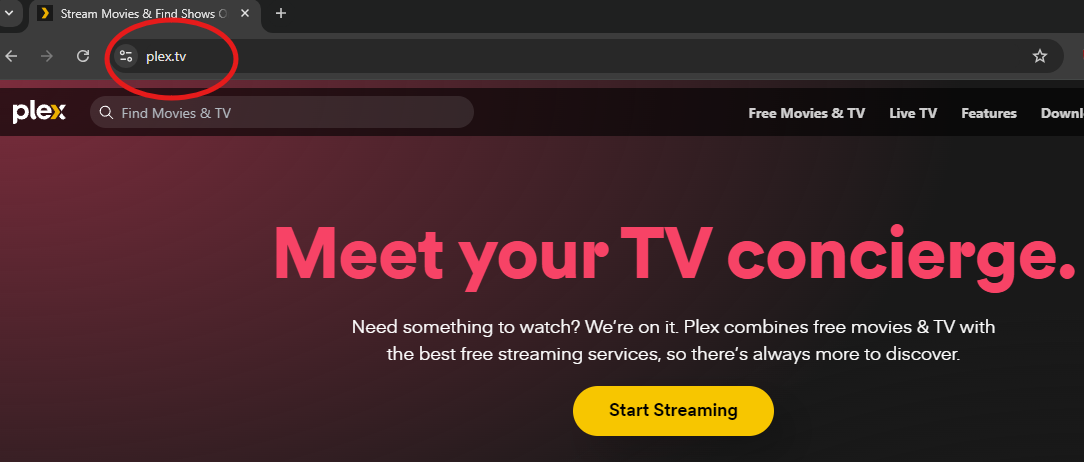
  1. Visit plex.tv. Plex Website Visita plex.tv. Sito Web Plex
  2. Click on the "Sign Up" or "☰" at the top right corner. Plex Sign Up Button Clicca su "Registrati" o sull'icona "☰" nell'angolo in alto a destra. Pulsante Registrati Plex
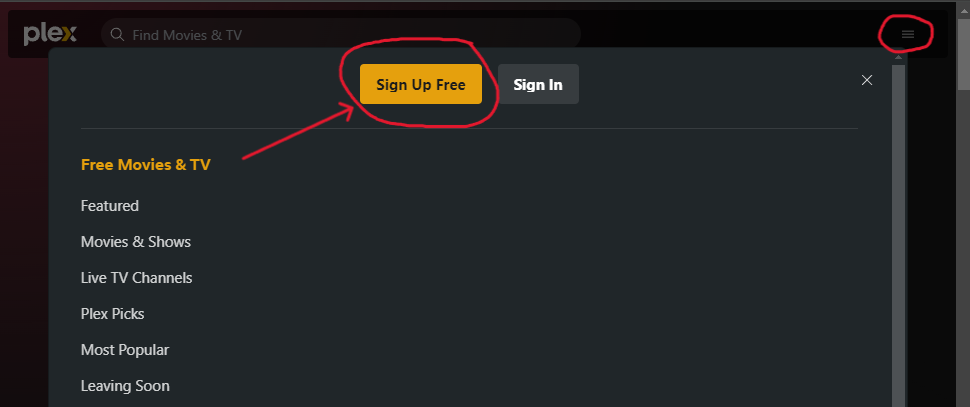
  3. Choose a way to create an account; there are 4 options! Plex Sign Up Form Scegli un metodo per creare un account; ci sono 4 opzioni! Modulo di Registrazione Plex
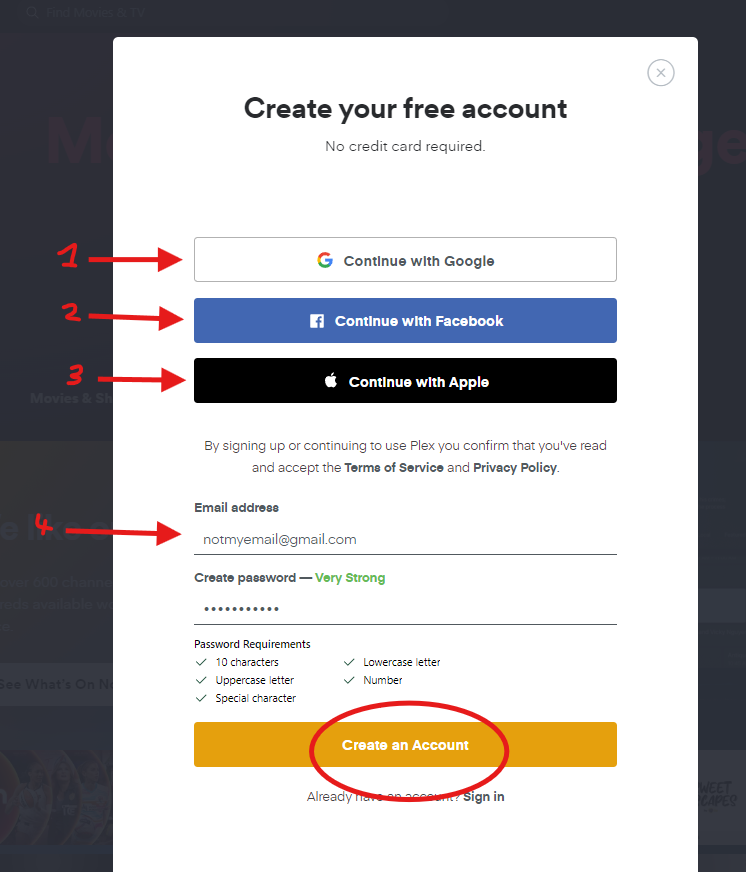
  4. Click on "Create an Account". Clicca su "Crea un Account".
  5. Step 1 is done 🎉🎉🎉 Passo 1 completato 🎉🎉🎉 Remember the email address you used for signing up. Write it down, tattoo it on your arm—whatever works! Ricorda l'indirizzo email che hai usato per registrarti. Scrivilo, tatuatelo sul braccio—qualsiasi cosa funzioni!

Step 2: Notify Me ❤️ Passo 2: Avvisami ❤️

  1. Send me (Lorenzo) a message containing the email address you used to sign up for Plex. If you can also include your username, Plex will generate one randomly for you. Inviami (a Lorenzo) un messaggio contenente l'indirizzo email che hai usato per iscriverti a Plex. Se puoi, includi anche il tuo nome utente; Plex ne genererà uno casualmente per te.
  2. I'm not stealing any of your information, chill out 😩. Plex will use the email to send you a request. This is how you will access my library. Non sto rubando nessuna delle tue informazioni, rilassati 😩. Plex utilizzera' l'email per mandarti una richiesta. Questo è come accederai alla mia libreria.

Step 3: Accept Plex Email Request Passo 3: Accetta l'invito Email di Plex

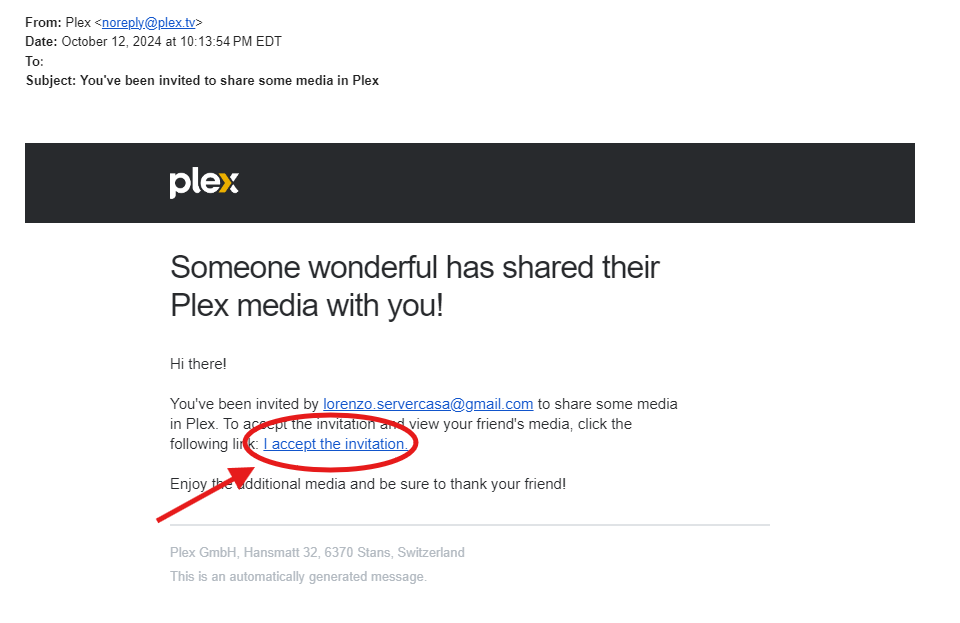
  1. Wait for an email invitation. It should arrive within a few minutes. 🕙 Attendi un'email di invito. Dovrebbe arrivare entro pochi minuti. 🕙
  2. Open the invitation email and click on "I accept the invitation". You can also accept my friend request which comes in a separate email. Plex Invitation Email Apri l'email di invito e clicca su "Accetto l'invito". Se vuoi accetta anche la richiesta di amicizia che arriva in un email separata. Email di Invito Plex
  3. ❗Log in to your Plex account if prompted. ❗Accedi al tuo account Plex se richiesto.
  4. My library should now be accessible in your Plex account. 🎥 Plex Library La mia libreria dovrebbe ora essere accessibile nel tuo account Plex. 🎥 Libreria Plex
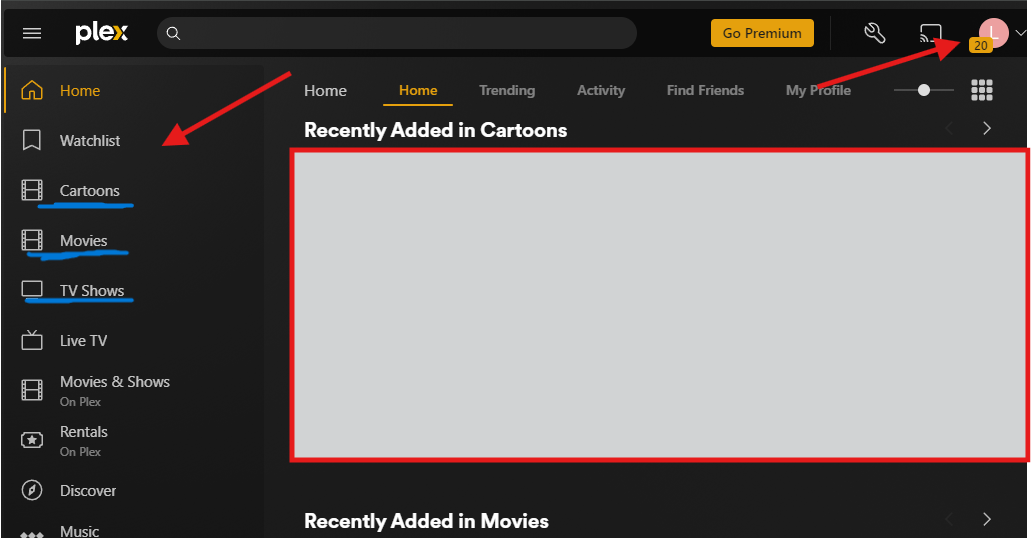
  5. ⚠️ This may vary slightly if you are doing it on mobile. Regardless, whatever Plex asks you, just accept it and you should be good. ⚠️ Questo potrebbe variare leggermente se lo stai facendo su mobile. Indipendentemente da ciò che Plex ti chiede, accetta tutto e dovresti essere a posto.
  6. Note❗: If you don't see my library, please try to look for it on the sidebar, and if you still can't find it there, then check in the "more >" section. Nota❗: Se non vedi la mia libreria, prova a cercarla nella barra laterale e se ancora non riesci a trovarla lì, controlla nella sezione "altro >".

You are ready to watch! 🎉🎉🎉 Sei pronto per guardare! 🎉🎉🎉

You are all set to watch movies and shows on my Plex library. You can now access Plex with your account on any device you want—TV, tablet, phone, and computer! Everything will be there!

This doesn't end here... Let's kick it up a notch and make it even better by configuring Overseerr so you can add your own movies and shows you want to watch with just a click of a button. 🖱️

This will be an app on your phone!
You've got this! 💪
Sei pronto per guardare film e serie TV nella mia libreria Plex. Ora puoi accedere a Plex con il tuo account su qualsiasi dispositivo tu voglia—TV, tablet, telefono e computer! Ci sarà tutto!

Ma non finisce qui... Facciamo un passo avanti e rendiamolo ancora migliore configurando Overseerr così potrai aggiungere i tuoi film e serie che desideri guardare con un semplice clic. 🖱️

Sarà un'app sul tuo telefono!
Ce la puoi fare! 💪

Step 4: Accessing Overseerr (Mobile) Passo 4: Accedere a Overseerr (Mobile)

  • ❗These steps are necessary only the first time you sign up! They exist for security purposes. You won't have to do this again; the app will log you straight in.❗ ❗Questi passaggi sono necessari solo la prima volta che ti registri! Esistono per motivi di sicurezza. Non dovrai farlo di nuovo; l'app ti accederà direttamente.❗
    1. Open your phone and go to Safari. Safari is needed! You can't use Chrome or any other browser. Apri il tuo telefono e vai su Safari. Safari è necessario! Non puoi usare Chrome o altri browser.
    2. ❗If you have an Android device, visit this guide. Replace Step 5 with what the guide says.❗ ❗Se hai un dispositivo Android, visita questa guida. Sostituisci il Passo 5 con ciò che dice la guida.❗
    3. Go to overseerr.lorenzoorio.com. You will be met with a Cloudflare page. These nice guys handle the security for me. Don't be scared 😅 Cloudflare page Vai su overseerr.lorenzoorio.com. Ti troverai davanti a una pagina di Cloudflare. Questi bravi ragazzi gestiscono la sicurezza per me. Non avere paura 😅 Pagina Cloudflare
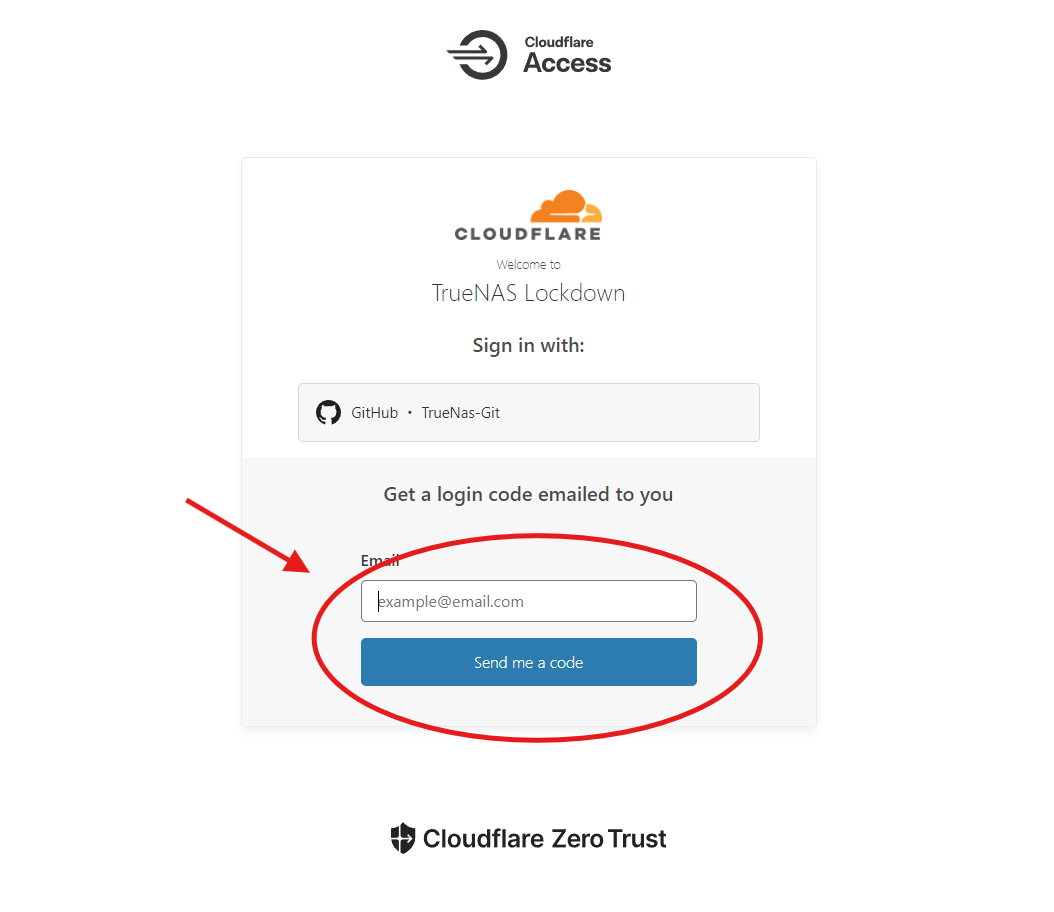
    4. Enter the email that you used for your Plex account and click on "Send me a code". Inserisci l'email che hai usato per il tuo account Plex e clicca su "Inviami un codice".
    5. You will receive an email in a few minutes from Cloudflare containing a random code. Enter it and then click "Sign in". Cloudflare enter code Riceverai un'email in pochi minuti da Cloudflare contenente un codice casuale. Inseriscilo e poi clicca su "Accedi". Cloudflare inserisci codice
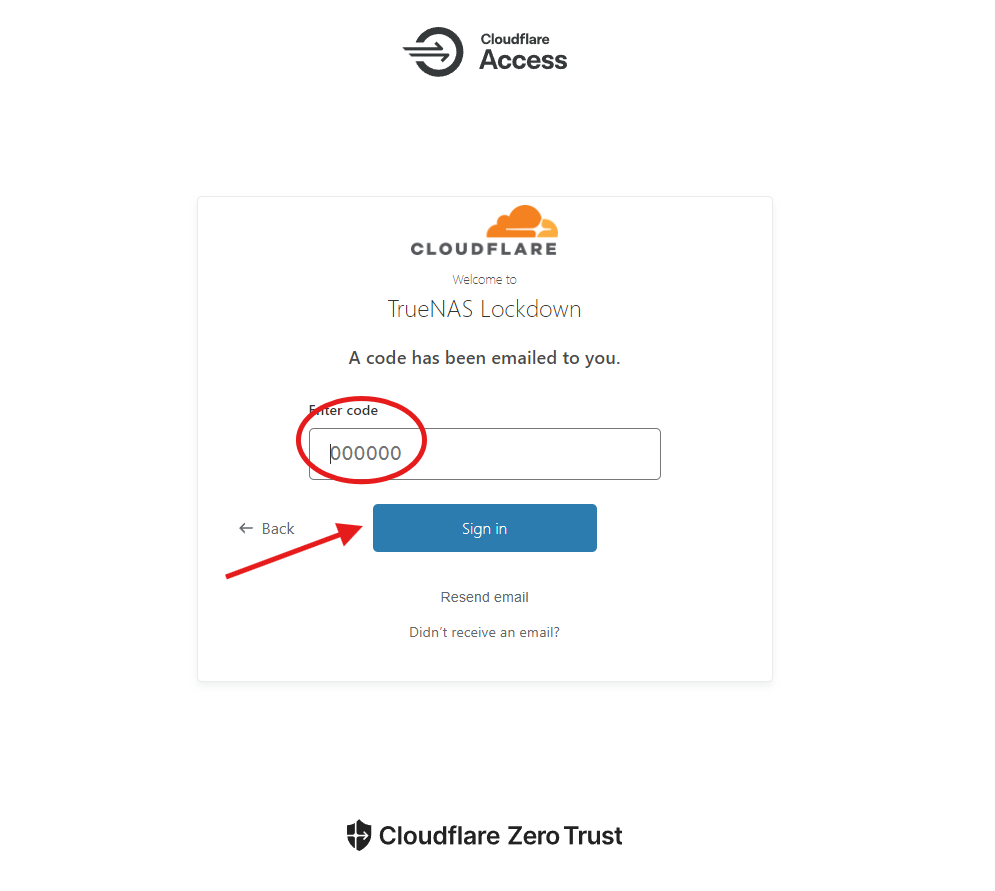
    6. ❗If you don't receive any code, first check your spam email, then wait a bit more. If you still haven't received anything, message me since I might need to add your email to Cloudflare.❗ ❗Se non ricevi alcun codice, controlla prima la tua posta indesiderata, poi aspetta un po' di più. Se ancora non hai ricevuto nulla, mandami un messaggio perché potrei dover aggiungere la tua email a Cloudflare.❗
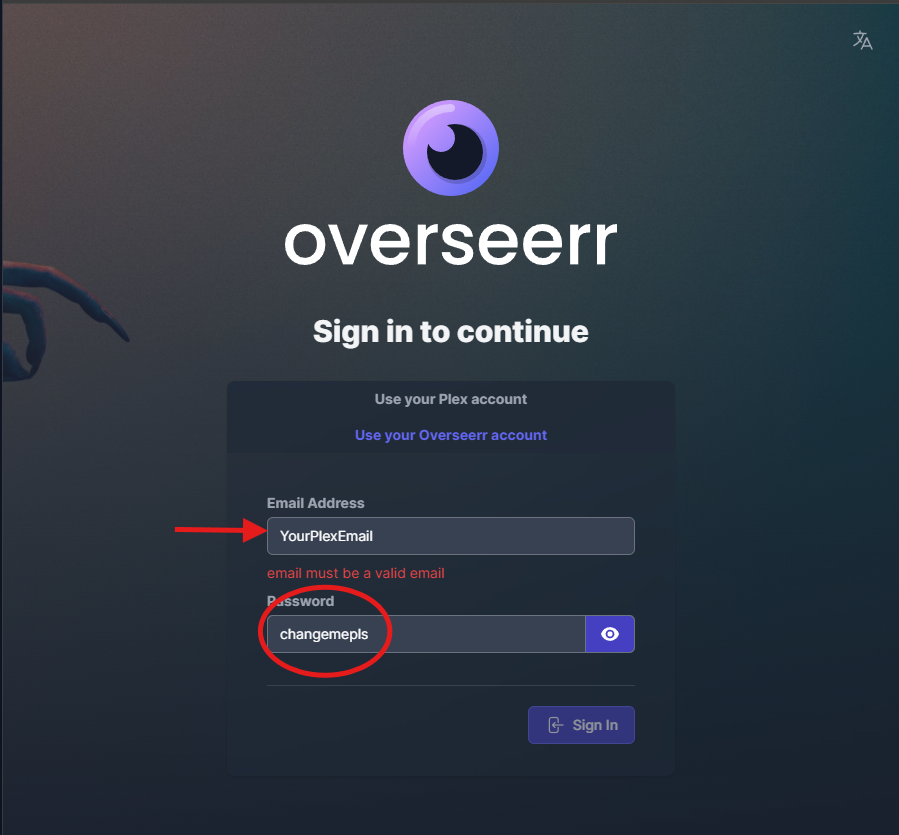
    7. Click on "Use your Overseerr account"; I would have created it beforehand. Overseerr Login Clicca su "Usa il tuo account Overseerr". Accesso Overseerr
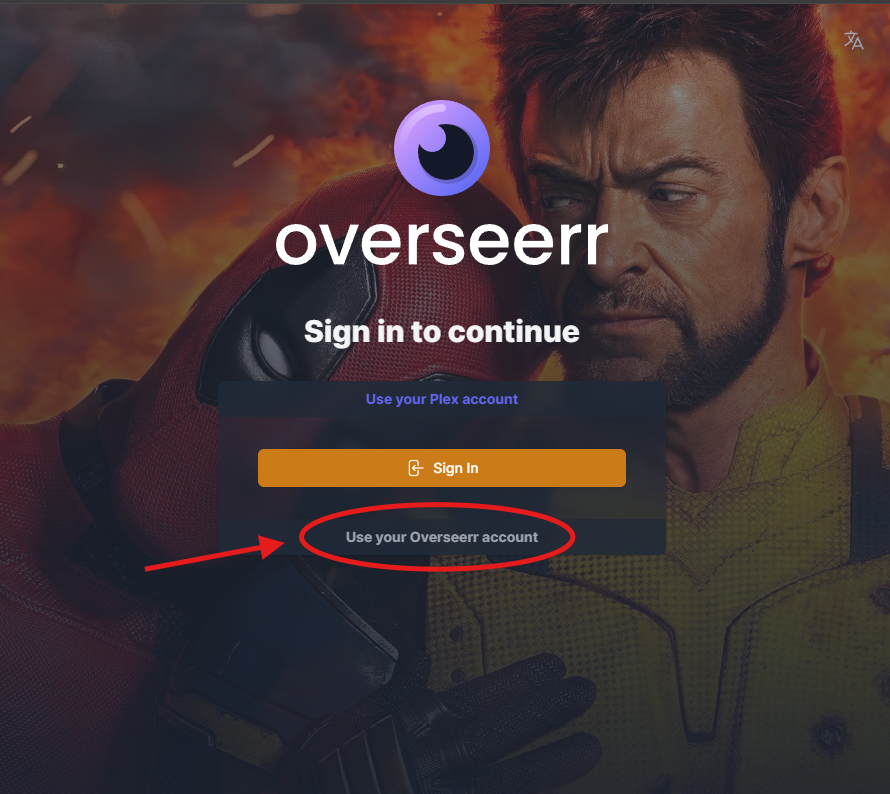
    8. Don't use the big orange "Sign in" button; that's for other things!!❗ Non usare il grande pulsante arancione "Accedi"; serve per altre cose!!❗
    9. Use the email address you used for Plex and the temporary password provided to you, which is "changemepls". Overseerr Login Credentials Usa l'indirizzo email che hai usato per Plex e la password temporanea fornita, che è "changemepls". Credenziali Accesso Overseerr
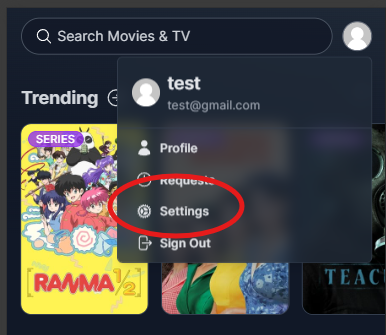
    10. Change the password!!!!! Click on your profile icon (top right corner) and select "Settings". Overseerr Settings Cambia la password!!!!! Clicca sulla tua icona profilo (angolo in alto a destra) e seleziona "Impostazioni". Impostazioni Overseerr
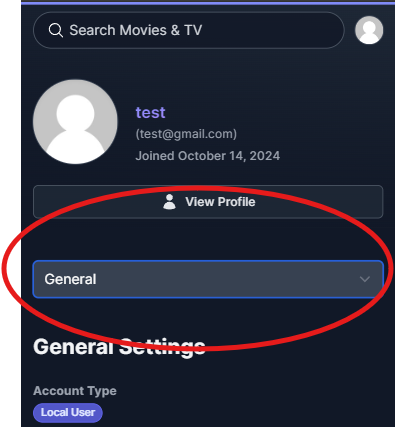
    11. Click on "General" and select "Password". There you can change it to whatever you want. Overseerr Change Password Clicca su "Generale" e seleziona "Password". Lì puoi cambiarla come preferisci. Overseerr Cambia Password
    12. 🎉🎉🎉

      You made it! You can now request movies and shows to be added to the library directly from the app by clicking "Request". You can also see what's coming soon and what's popular. Ce l'hai fatta! Ora puoi richiedere film e serie da aggiungere alla libreria direttamente dall'app cliccando su "Richiedi". Puoi anche vedere cosa sta per arrivare e cosa è popolare.
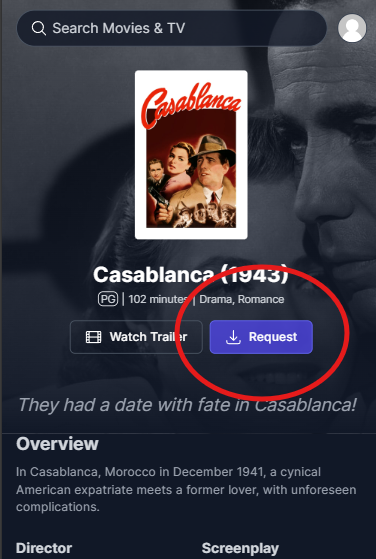
      Overseerr Request

    Step 5: Make Overseerr an App on Your Home Screen (It's Easy!) Passo 5: Aggiungi Overseerr alla Schermata Home (È Facile!)

    1. Make sure you are on Safari on your iPhone or iPad and on the Overseerr website (overseerr.lorenzoorio.com). Assicurati di essere su Safari sul tuo iPhone o iPad e sul sito di Overseerr (overseerr.lorenzoorio.com).
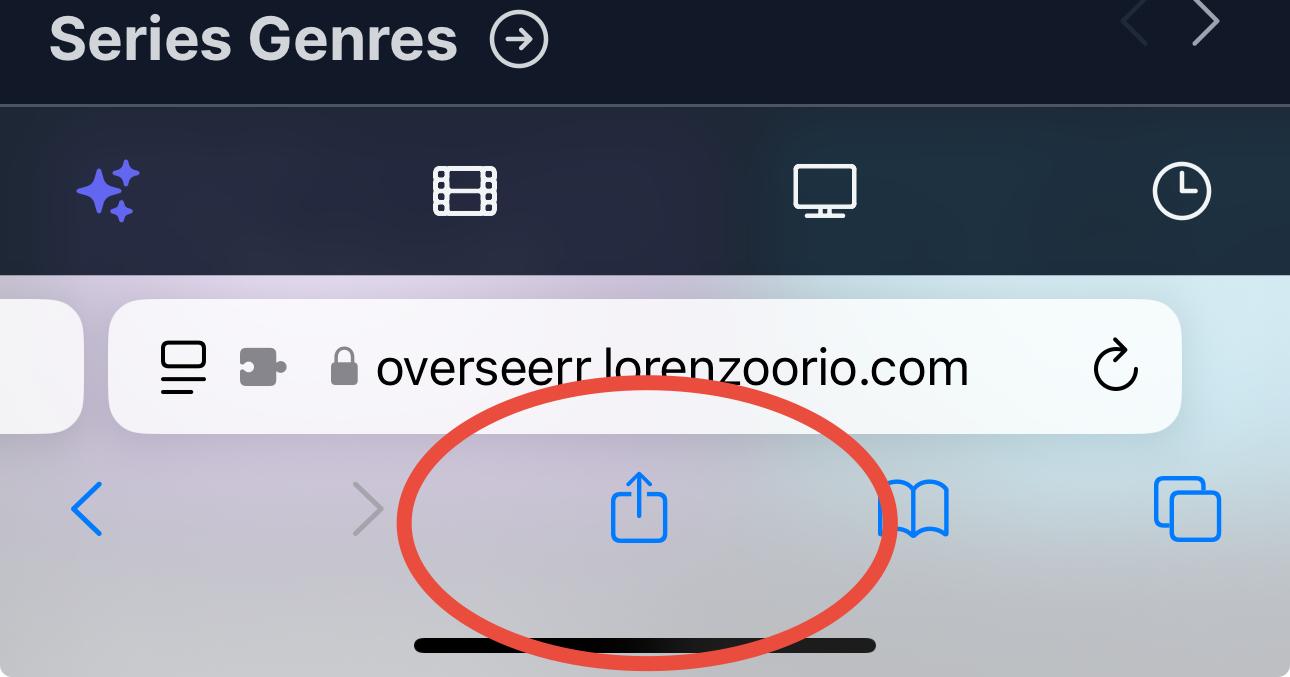
    2. Tap the Share button at the bottom of the Safari window. It looks like a square with an arrow pointing upwards. Share Button Tocca il pulsante Condividi in basso nella finestra di Safari. Sembra un quadrato con una freccia rivolta verso l'alto. Pulsante Condividi
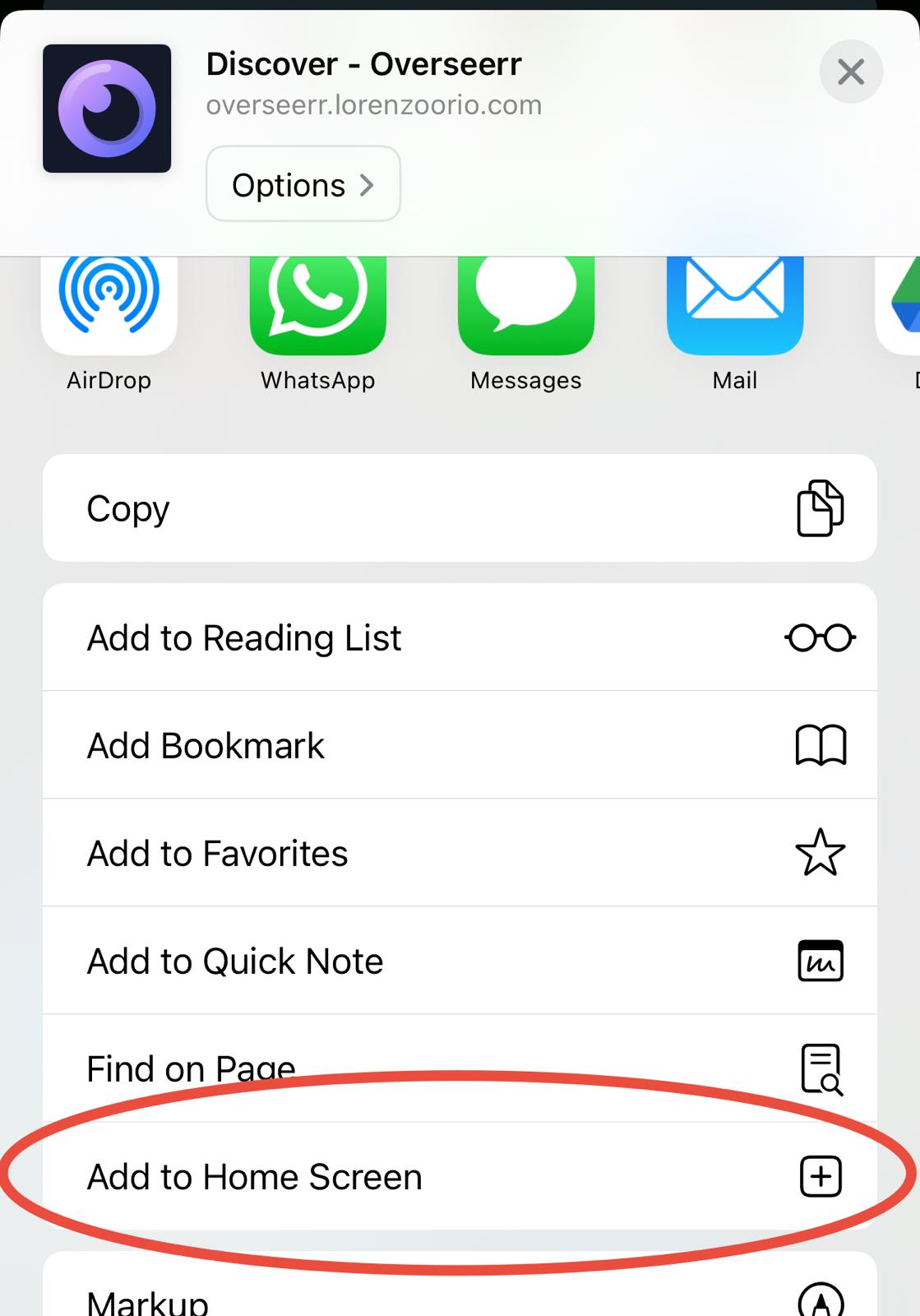
    3. Scroll down and tap Add to Home Screen. Add to Home Screen Scorri verso il basso e tocca Aggiungi a Home. Aggiungi a Schermata Home
    4. Choose a name for the shortcut (e.g., "Overseerr") and tap Add. Scegli un nome per il collegamento (es., "Overseerr") e tocca Aggiungi.
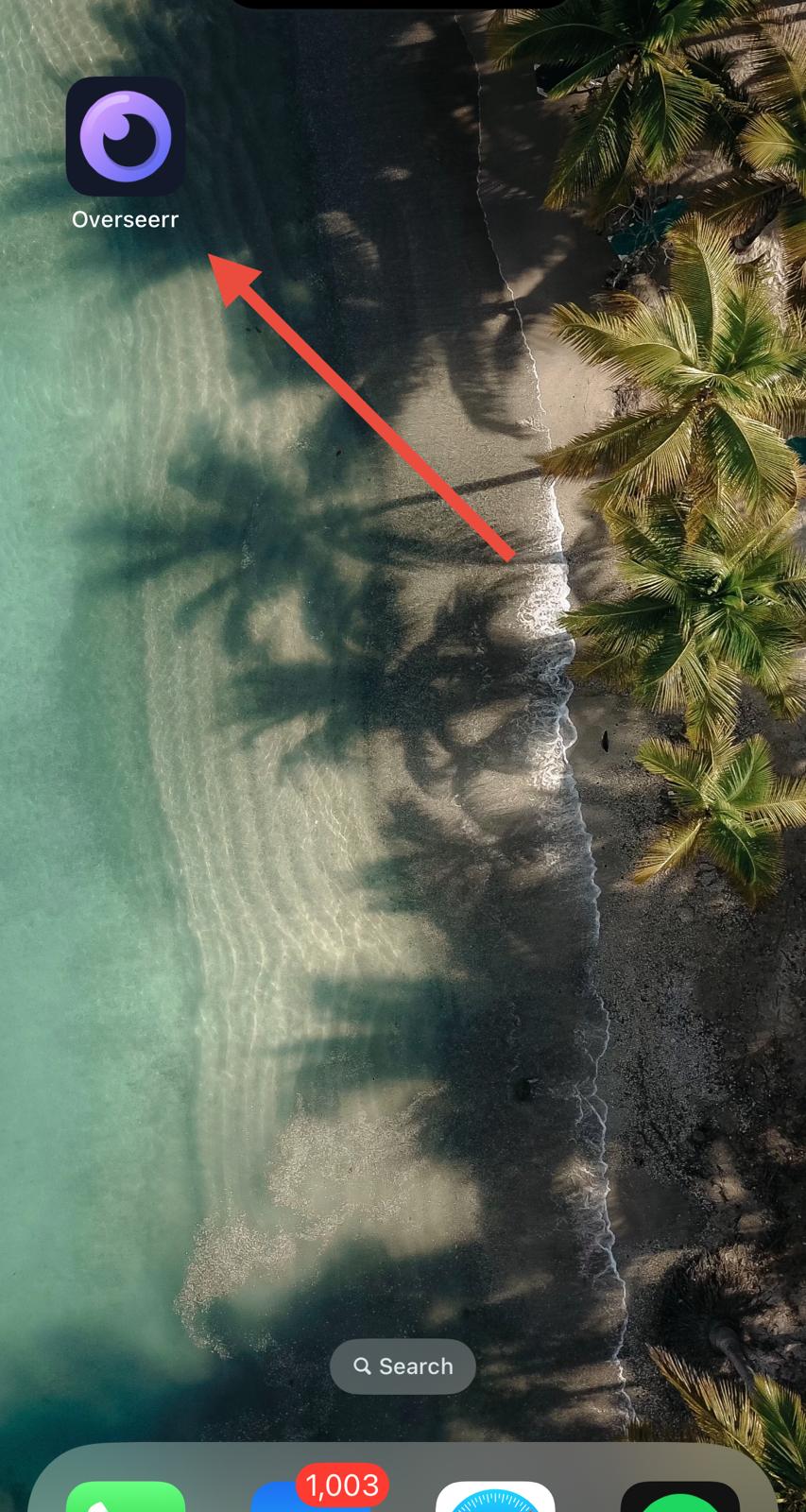
    5. Now, you'll see the icon on your home screen. Tap the new icon to launch Overseerr like an app! Overseerr Home Screen Icon Ora vedrai l'icona sulla tua schermata home. Tocca la nuova icona per avviare Overseerr come un'app! Icona Home Screen Overseerr
    6. 🎉🎉🎉

      Perfect! Everything is all set!!! You can now access my library and request movies and shows from your phone.
      Watch movies and shows using Plex and request new ones using Overseerr!
      Perfetto! È tutto pronto!!! Ora puoi accedere alla mia libreria e richiedere film e serie dal tuo telefono.
      Guarda film e serie usando Plex e richiedine di nuovi usando Overseerr!

      🎉🎉🎉

    7. ⚠️ Even though it's rare, you might come across some strange or inappropriate movie covers (e.g., weird Asian adult covers) in Overseerr. 😅 This is totally normal and happens because some movies aren't correctly categorized on IMDb or other databases.

      Don't worry; these aren't part of the actual library and can be ignored. If you see something inappropriate, feel free to let me know, and I'll fix it as soon as possible! 👍
      ⚠️ Anche se è raro, potresti imbatterti in alcune strane o inappropriate copertine di film (es., strane copertine asiatiche per adulti) in Overseerr. 😅 Questo è totalmente normale e accade perché alcuni film non sono correttamente categorizzati su IMDb o altri database.

      Non preoccuparti; questi non fanno parte della libreria effettiva e possono essere ignorati. Se vedi qualcosa di inappropriato, sentiti libero di farmelo sapere e lo sistemerò il prima possibile! 👍

    © 2024 Lorenzo Orio

    No animals were harmed in the making of this guide. Nessun animale è stato maltrattato nella realizzazione di questa guida.